
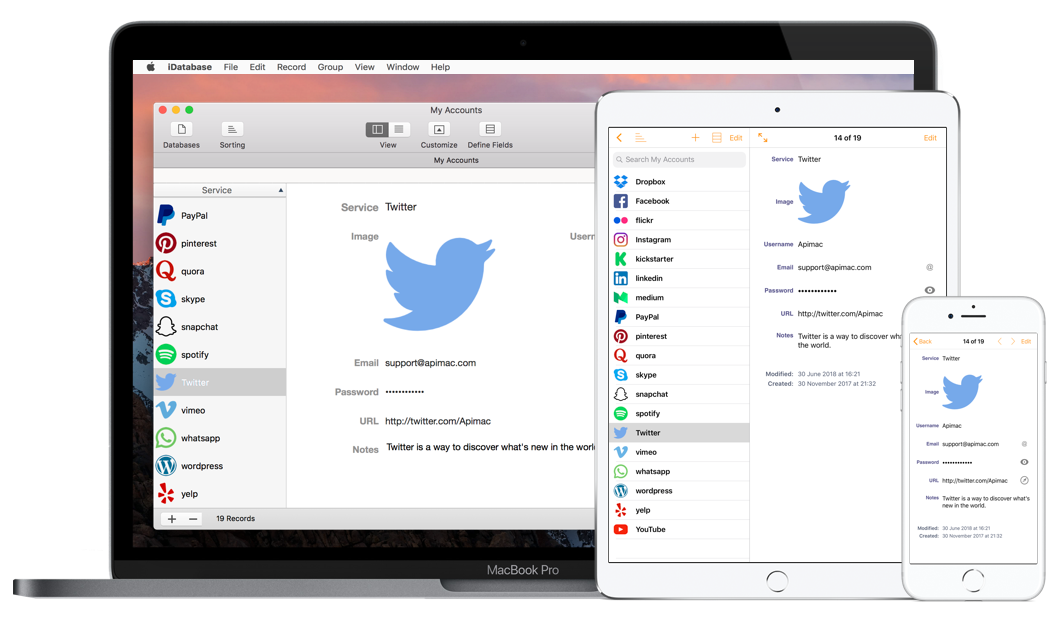
Welcome to the iDatabase Support Page. iDatabase is Apimac’s easy-to-use database app for Mac and iPhone that helps you keep your information organized and always at hand — from contacts and inventories to personal projects. With ready-to-use templates and an intuitive design, managing your data has never been simpler. iCloud sync is currently in beta testing.
Don’t have the app yet? Get it now directly from Apimac:
Download iDatabase directly from Apimac
or get it from the Mac App Store:
Download iDatabase on the Mac App Store
Current Issues
This section highlights any known issues currently being addressed. Fixes will be included in upcoming updates.
iDatabase for iOS: In-App Purchases Temporarily Unavailable
In the current version, in-app purchases and “Restore Purchases” may remain stuck in a loading state. Your data and existing license are safe. A fix is included in version 26.5, currently under App Store review. Once available, update the app and tap “Restore Purchases” to unlock all features again.
iDatabase for iOS: Databases May Appear Missing After Launch
In the current version, when you open iDatabase you may briefly see the Welcome screen as if all your databases were gone. Your data is safe and still stored in iCloud. To recover the view, fully close the app, make sure you are connected to Wi-Fi, wait a couple of minutes and reopen it: your databases will reappear automatically. You can also confirm your data is still there in Settings → Apple ID → iCloud → Manage Account Storage → iDatabase, where you will see the storage used by the app. Important: please do not use the “Restore from iCloud Backup” option in the current version, as it may not work correctly in this scenario. A fix is included in version 26.5, currently under App Store review. Once available, simply update the app and your databases will continue to work normally.
iDatabase Support Articles
Find below the most common solutions and tutorials for using iDatabase on Mac, iPhone, and iPad. This guide helps you solve issues, understand how synchronization works, and make the most of all iDatabase features.

Before you begin
Make sure iDatabase is in the Applications folder and that only one copy is installed on your Mac. Multiple copies can cause sync or authentication issues. Your databases remain safe in the system Library and are not affected by removing extra copies.
Does iDatabase support iCloud?
iDatabase includes native iCloud integration. It supports both real-time automatic synchronization using “iCloud Sync” and manual backup and restore using “Back Up to iCloud Now” and “Restore from iCloud Backup”.
How to sync your databases between two different devices (iPhone, iPad, or Mac)
To synchronize your databases across devices, make sure each device uses the same Apple ID account and that iCloud synchronization is enabled in iDatabase settings on every device. Changes are synced automatically in the background and will appear on your other devices shortly, without any manual action required. In some cases, synchronization may take longer depending on network conditions and device activity.
How iCloud synchronization works
As with other apps that use iCloud, synchronization is managed entirely by the system and is not instantaneous. Changes are propagated automatically in the background, but timing can vary depending on network conditions, file size, device activity, and system scheduling. In many cases updates appear within seconds, but they can also take minutes. Under certain conditions, such as limited connectivity or power-saving states, synchronization may be delayed further.
Can I keep a database file in a cloud folder manually?
No. iDatabase stores databases in a private app folder or in its iCloud container. Manually moving or duplicating these files into a cloud folder may cause corruption or loss of synchronization. Always use the built-in iCloud Sync feature instead of manually relocating files.
My databases disappeared after an update
If your databases are not visible after updating iDatabase, this does not mean they have been deleted.
When iCloud sync is enabled, your databases are stored in your iCloud space and are not removed during an update.
In some cases, the app may need a little time to reconnect to iCloud and load your data again.
Try closing the app completely, make sure iDatabase is enabled in Settings → iCloud, and reopen the app after a few minutes — your databases should reappear automatically.
How does exporting databases to iCloud Drive work?
In iCloud Drive, you’ll find an “iDatabase” folder with an “Exports” subfolder. When you export a database from iDatabase, it’s saved there. Tapping or double-clicking a .iDatabase or .csv file will open iDatabase and offer to import the data automatically.
Duplication of records the first time I sync
The synchronization system in iDatabase has been redesigned for better stability. The first time you enable sync, you may notice duplicate records if the same database existed independently on two devices. Simply delete the duplicates once; future synchronizations will keep your data consistent.
Can I move the first field (Title field) to another place?
The first field, called “Title field,” is automatically created with every database and serves as its key identifier. For technical reasons, it can’t be moved or deleted, but you can rename it in the “Define Fields” window. This structure ensures proper sorting and performance. The Title field is always present and fixed in position because iDatabase uses it to manage and display records internally. You can rename or edit it, but it can’t be removed or reordered. Future versions may allow more field customization.
Can I import data into an existing database?
Currently, iDatabase doesn’t allow importing new data into an existing database. When importing from a text or CSV file, the app creates a new database instead. If you need to merge information, you can combine CSV files manually using a text editor, then import the combined file into iDatabase to create a unified database.
iDatabase Mac doesn’t sync with iDatabase iPhone
Check that both devices are linked to the same iCloud account and that the internet connection is active. Also verify that synchronization is enabled in the preferences of both apps.
Can I take all the records and total them up?
iDatabase doesn’t perform automatic calculations or totals. To process numerical data, export your database as a CSV file and open it in a spreadsheet app like Numbers or Excel, where you can apply formulas and summaries.
Is iDatabase multi-user?
iDatabase is designed for individual use and synchronization across personal devices, not for multi-user editing. Using the same database on two devices simultaneously can lead to sync conflicts or duplicated data. For safety, let one device complete synchronization before editing on another.
Can iDatabase replace FileMaker or Bento?
iDatabase isn’t meant to replace full-featured relational database systems like FileMaker or Bento. It’s designed for simplicity and speed, ideal for organizing personal or small business data. It offers ready-to-use templates, image fields, and cloud sync without requiring technical knowledge.
Does iDatabase provide high security options for sensitive data?
iDatabase includes an optional access code to prevent unauthorized use of the app, but it doesn’t encrypt individual databases or fields. For confidential data, consider using encrypted disk images or enabling full-disk encryption through macOS security settings.
What type of fields can be created?
You can create up to 14 field types: Text, Number, Date, Time, Date & Time, Picture, URL, Email, Checkbox, Option, Calculation, Password, Phone, and Separator. Each type is optimized for its data and includes dedicated controls for entry and validation.
Can iDatabase handle large databases?
There’s no fixed limit to database size. Performance depends on your device’s storage and memory. On systems with limited resources, databases containing many large images may take longer to open or sync. For smoother operation, keep images optimized for screen display.

Solutions for Mac
Can I import data into an existing database?
Yes. If the source data is another iDatabase database, you can import its records directly into an existing database using Record → Import Records and selecting the source database from the list. The source and destination databases must have the same fields.
If instead you are importing from a CSV or text file, the app creates a new database — in that case you would need to combine the CSV files manually before importing.
My databases are missing after updating iDatabase — what should I do?
Your databases are still there — they’re just not visible. iDatabase never deletes your data during an update. Your databases are safely stored in a protected system folder, so in almost every case this is a display or path issue, not actual data loss.
Please try these steps in order:
- Check where iDatabase is located on your Mac. It must be inside the Applications folder.
- If it is somewhere else (Desktop, Downloads, your user folder…), quit iDatabase (⌘Q) and move it into the Applications folder.
- Open iDatabase from the Applications folder by double-clicking its icon there.
iDatabase does not start up
If iDatabase doesn’t launch correctly, make sure the app is located in the Applications folder and that no other copies exist elsewhere on your Mac. Having multiple copies can cause conflicts with system permissions and cloud synchronization. If the issue persists, restart your Mac or reinstall the app; your databases will remain safe in the system Library folder.
The New Record option is grayed out and I am unable to create new records
If the New Record option is disabled, make sure that no search filter or group is currently selected. Click the “All” label in the sidebar and ensure the search field is empty. Once you return to the full list of records, the New Record button will become available again.
Mac – Disabled Edit menu
This issue may occur if a database window is not active when you open the Edit menu. Click inside a database field to focus the window and reactivate editing commands. You can also use the contextual menu (right-click) to perform most edit operations.
Mac – When resizing a “large text field” iDatabase crashes
If iDatabase crashes when resizing a large text field, reduce the size of the field window gradually or avoid resizing during text editing. We are aware of this limitation and are working to improve text field handling in future updates.
Mac – Upgrade to new version
The latest version of iDatabase introduces many improvements and is free for all registered users. To upgrade, quit the app, download the new version from Apimac’s website, and replace the existing copy in your Applications folder. Your databases and settings will remain safely stored in your Library folder. If you purchased the app on the Mac App Store, updates are handled automatically through the App Store app.
Mac – The location of iDatabase files
iDatabase stores your databases inside the system Library folder under Application Support. In most cases, you will find them in: Library > Application Support > Apimac iDatabase. This ensures that your data is safely separated from the app itself.
To access your data manually, open Finder, hold the Option key, click the “Go” menu, and select “Library,” then open Application Support > Apimac iDatabase.
In some situations, the exact location may vary depending on system conditions and configuration. These files are managed automatically by the system and should not be modified, moved, or duplicated manually, as this may cause data corruption or sync issues.
Mac – Minimum requirements for iDatabase
iDatabase is designed for modern Apple systems using 64-bit processors. It runs on recent versions of macOS. For best performance, keep your system updated with the latest security and framework updates.
Mac – What are the limitations of the unregistered version?
The version available for download from our website works as a free trial for 30 days. During this time, all features are available. After the trial period ends, you’ll be prompted to purchase a license to continue using the app without interruption.
What can I do if I lost my Access Code?
Starting with version 26, the app uses your device’s biometric authentication instead of a separate Access Code. If Touch ID or Face ID fails, you will be prompted to enter your device passcode—the same password you use to unlock your iPhone, iPad, or Mac.
Note: Starting with version 26, app access protection uses your device’s Touch ID, Face ID, or device passcode. The privacy lock is no longer controlled by a separate Access Code. If you are unable to unlock the app, use your device passcode when prompted.
How can I reset iDatabase preferences?
Preferences store interface settings such as window positions, sidebar width, toolbar arrangements, and default options for dialogs and lists. You can change all of these directly from the Preferences panel inside the app, so a complete reset is rarely necessary. If you experience unexpected behavior with the interface, check the relevant options in the Preferences panel first.
Which Export/Import and Backup feature supports iDatabase?
iDatabase supports backup, restore, export, and import in both iDatabase and CSV formats. For full compatibility, use the iDatabase format, which preserves all data and images. Exported databases can be shared by email, AirDrop, or iCloud Drive. To send large files, compress them as ZIP before sharing. You can also export and import directly through iCloud Drive, using the “Exports” folder inside the “iDatabase” directory.
Mac – How to back up and restore databases
AUTOMATIC BACKUPS and RESTORE (recommended):
iDatabase creates automatic backups before critical operations.
These are stored in:
~/Library/Containers/com.apimac.iDatabase/Data/Library/Application Support/Apimac/iDatabase/Backups/Mac/
To restore from automatic backup:
• Open iDatabase
• Menu: File → Restore From This Mac Backup…
• Select the backup (shown by date/time)
• Confirm restoration
MANUAL BACKUP and MANUAL RESTORE (for advanced users only):
To manually back up your databases:
• Close iDatabase
• Navigate to: Library > Containers > com.apimac.iDatabase > Data > Library > Application Support > Apimac > iDatabase
(Hold Option key, click Finder’s “Go” menu, select “Library”)
• Copy the entire “iDatabase” folder to a safe location
• To restore: close iDatabase, replace the folder, reopen
IMPORTANT: Never modify files while iDatabase is running.
Mac – Problems opening databases created with older versions
Databases created with much older versions of iDatabase can still be opened, but some formatting or field type differences may occur. If a file doesn’t open correctly, export it as CSV from the old version and import it again using the Import option under the File menu.
Mac – Sharing a database with another Mac user
To share a database, export it in iDatabase format (.iDatabase) from the Databases window. Compress it if large, then send it by AirDrop, email, or any file-sharing service. The recipient can double-click the file to import it directly into iDatabase and use it as any other database.
Solutions for iPhone
App freezes or responds slowly
If the app feels sluggish, close all other running apps to free up memory and restart your device. For the best experience, ensure you have enough free storage space and that your databases do not include excessively large images. Deleting unused databases can also improve performance.
Image field not working
If you can’t add or view pictures in image fields, check that iDatabase has permission to access Photos. Go to Settings > Privacy & Security > Photos and enable access for iDatabase. Also verify that the image is in a supported format (JPEG, PNG, HEIC) and that it’s not too large for your device’s memory.
Unable to download or update iDatabase from the App Store
If you cannot download or update iDatabase, make sure your device has an active internet connection and enough available storage. Check that your Apple ID is signed in and that App Store restrictions are not enabled in Screen Time. If the problem continues, sign out and back into the App Store or restart the device.
Tutorials
Mac – How to create your first database
In this short tutorial you will learn how to create your first database, add and delete records, and customize its structure. Open iDatabase, choose “New Database” from the File menu, assign a name, and click OK. You can now add records using the “+” button and define your fields by selecting “Layout” from the toolbar. iDatabase saves your work automatically.
Mac – How to create groups and smart groups of records
iDatabase allows you to organize your records using groups and smart groups. Groups let you manually categorize data, while smart groups automatically include records that match specific criteria. To create a new one, click the “+” button in the sidebar and choose “New Group” or “New Smart Group.” You can edit or delete groups at any time.
Mac – How to import a Bento’s Library
You can easily import a Bento library into iDatabase. In Bento, export your library as a text file, then open iDatabase and select File > Import. Choose the exported file and follow the on-screen steps to map fields. The imported data will appear as a new database that you can rename and edit freely.
Mac – How to import AppleWorks databases
AppleWorks can export data in plain text or CSV format, which iDatabase can read. Export your AppleWorks data, then in iDatabase select File > Import and choose the exported file. The Import window will guide you through matching columns to fields and adjusting delimiters before completing the import.
Mac – How to adjust settings of the Import window
When importing a text file, iDatabase displays the Import window where you can control how data is interpreted. You can choose the field separator (comma, semicolon, or tab), select whether the first row contains field names, and adjust text encoding if needed. Once configured, click Import to create a new database.
Mac – How to export or share a database
All sharing and export options are available from the Databases window. If you’re viewing a specific database, return to the main Databases view, select the one you want to share, and choose Export. You can export in iDatabase format (including images) or CSV for spreadsheets. Exported files can be shared by email, AirDrop, or saved to iCloud Drive.
Mac – Importing a database from FileMaker
iDatabase does not directly import FileMaker files because they use a proprietary structure. However, you can export your FileMaker data as CSV or tab-delimited text, then import it into iDatabase using the Import option. This allows you to retain the data content while adapting it to a simpler, lightweight database format.
Contact Support
If you don’t find the answer you’re looking for here, you can reach us directly through the support page. We’ll be happy to help.